How to Add Social Media Icons to an Email Signature
The short answer: include one to three social media icons that lead to current, professionally relevant profiles. Make each icon a normal HTTPS link, use a publicly hosted PNG with explicit dimensions and useful alt text, then send test messages to Gmail, Outlook, and a mobile inbox before using the signature.
The hard part is not inserting a LinkedIn or Instagram logo. It is deciding whether that destination deserves space in every email you send—and making sure the link still works when an email client rewrites or blocks parts of the signature.
Our approach is proof before pixels: prove that the profile is useful, prove that the destination is correct, and prove that the icon survives real inboxes. Only then worry about colour or icon style.
Which social media icons belong in your signature?
Use the one-link test: if a recipient follows this link after reading one email, will they find something that helps them understand, trust, or contact you? If the honest answer is no, remove the icon.
| Profile | Include it when | Leave it out when |
|---|---|---|
| Your role, experience, company, or professional posts add useful context. | The profile is private, incomplete, outdated, or unrelated to the sender. | |
| Your work is visual: photography, design, fitness, hospitality, property, retail, or a portfolio-led service. | The account is personal or does not help a business recipient evaluate your work. | |
| An active business page is a real support, booking, community, or local-discovery channel. | The link points to a personal profile or an unattended page. | |
| Google Business Profile | Local customers use the listing for directions, hours, reviews, or contact details. | You do not control the listing or its details are inconsistent with your website. |
| Website | The site is the clearest next step for services, work samples, pricing, or contact. | The page is unfinished, insecure, or less useful than a direct destination. |
More accounts do not create more credibility. Four weak destinations create four chances for a recipient to meet an old logo, a broken link, or an abandoned profile. A single maintained LinkedIn profile can be stronger than a complete row of social logos.
How to add clickable social media icons
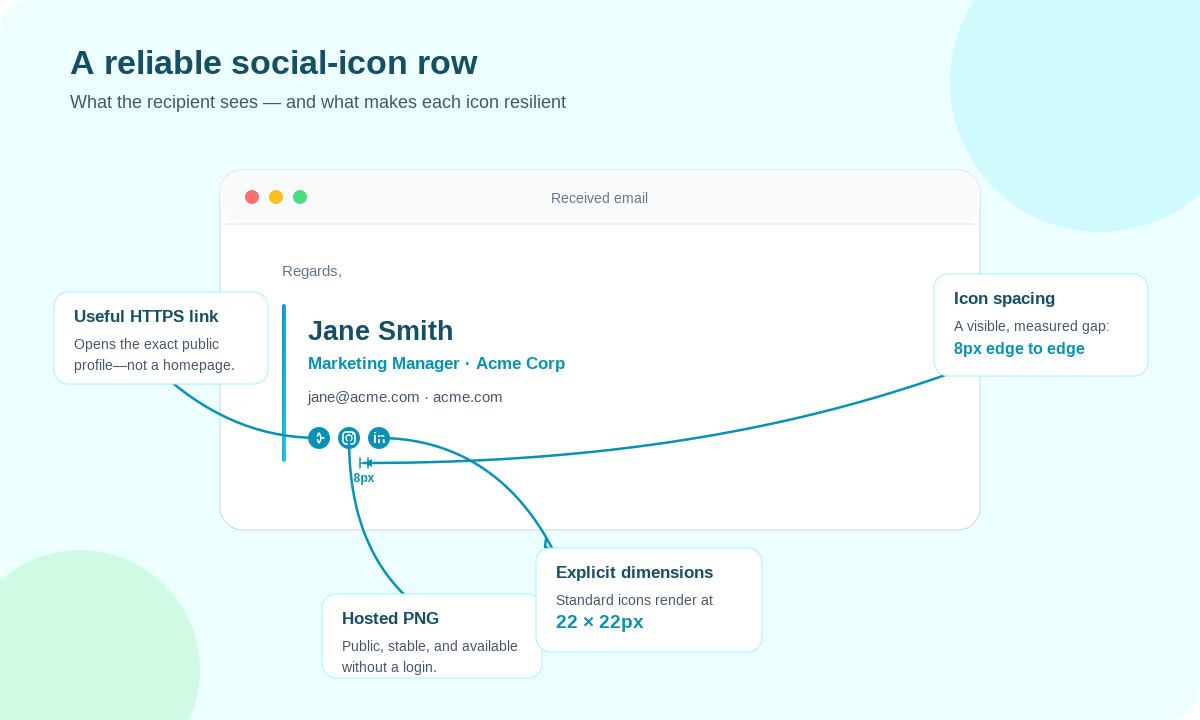
- Choose the destination first. Open the exact public profile and copy its full HTTPS URL. Do not use a logged-in dashboard URL, link shortener, or search-results page.
- Use a public image URL. The icon must be accessible without a login and remain at a stable address. Avoid temporary upload previews and files stored on your own computer.
- Wrap the image in a link. The image is what the recipient sees; the surrounding anchor determines where a click goes.
- Set width and height explicitly. Fixed dimensions help the layout reserve the right amount of space before the image loads.
- Add meaningful alt text. Use the platform name, such as “LinkedIn,” so the purpose remains clear when images are hidden.
- Install and test the signature. Copy the finished signature into your email client, save it, and send real test messages.
The underlying HTML can stay simple. This reduced example uses an email-friendly table cell, a normal link, a hosted PNG, explicit dimensions, and platform-name alt text:
<td style="padding-right: 8px;">
  <a href="https://linkedin.com/in/your-profile"
     target="_blank" style="text-decoration: none;">
    <img src="https://your-domain.com/icons/linkedin.png"
         alt="LinkedIn" width="22" height="22"
         style="display: block; width: 22px; height: 22px; border: 0;">
  </a>
</td>
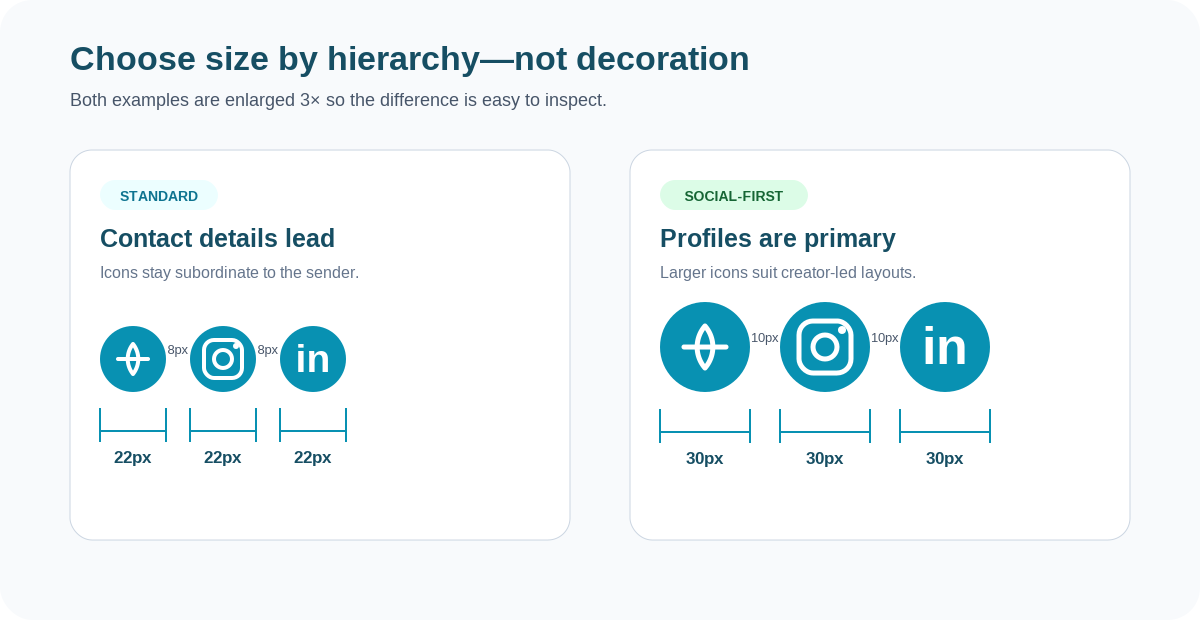
This pattern reflects how our email signature generator renders standard social icons: 22-pixel hosted PNGs, eight pixels of spacing, inline dimensions, descriptive alt text, safe profile URLs, and table cells rather than fragile modern layout CSS. Two social-first templates deliberately use larger 30-pixel icons; the rest keep the icons subordinate to the sender’s name and contact information.
Icon size, style, and spacing
There is no universal pixel size required by Gmail or Outlook. The correct size depends on the surrounding signature and the role of the icons. In our 28 templates, 22 pixels is the standard display size and 30 pixels is reserved for layouts where social profiles are a primary part of the sender’s identity.
- Use one size within a row. Mixed icon sizes make the line look misaligned even when each individual logo is correct.
- Keep the style consistent. Choose either a restrained monochrome set or a coordinated colour treatment.
- Leave visible separation. Our standard row uses eight pixels after each icon; the large variant uses ten.
- Do not make the icon carry essential information alone. Your name, role, and core contact details should still be readable if images are blocked.
- Use the platform name as alt text. “LinkedIn” communicates the destination; “blue social icon” does not.
How Gmail and Outlook handle signature icons
Gmail
Google’s current Gmail help says signatures can include an image and that images count toward Gmail’s 10,000-character signature limit. The practical installation route is Settings → See all settings → Signature, followed by Save Changes. See Google’s official instructions for creating a Gmail signature.
Google also recommends alt text for images in its branded-email layouts because alt text provides context when an image is not rendered and helps screen-reader users. That guidance is directly useful for linked social icons even though branded layouts and ordinary signatures are separate Gmail features.
Outlook
Microsoft’s signature guidance explicitly supports adding hyperlinks to a website or social profile and describes editing the link attached to a social icon. Its recommended workflow is to paste the prepared signature, personalise it, save it, and choose whether it applies to new messages or replies. See Microsoft’s official guide to adding social links to an Outlook signature.
Microsoft and Google both maintain several Outlook and Gmail versions, so a successful preview in the editor is not enough. The sent message is the useful test surface.
The five-message test
Before rolling out a signature, send five messages that exercise different conditions:
- Gmail desktop: confirm the icons load, align, and open the intended public profiles.
- Outlook desktop or web: check that spacing and link targets survive the paste-and-save process.
- A mobile inbox: confirm the icon row fits without pushing important contact details off screen.
- A reply: make sure the signature remains readable when quoted below a conversation.
- Images blocked: confirm the platform-name alt text and surrounding contact details still make sense.
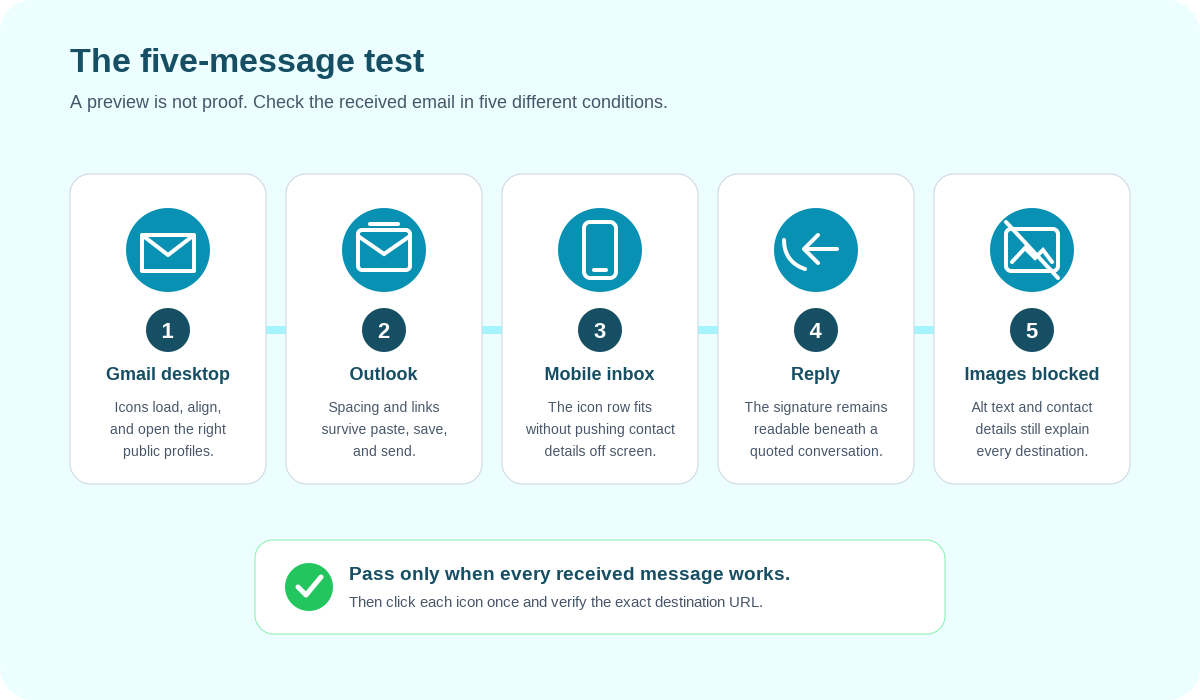
Click every icon in the received messages. A correct-looking LinkedIn logo that opens the wrong employee profile is still a failed signature.
If you already have signature HTML, run it through the free email signature health check. It flags missing image alt text, insecure image URLs, oversized HTML, tracker pixels, and patterns that commonly cause problems in Outlook or dark mode.
Common social-icon mistakes
- Linking to a social network homepage instead of the exact company or personal profile.
- Using private, expired, or authentication-dependent image URLs.
- Adding an icon for every account without checking whether each destination helps the recipient.
- Mixing unrelated icon styles, colours, and dimensions in one row.
- Omitting alt text and leaving a meaningless broken-image placeholder.
- Relying on icons for contact information that should also appear as text.
- Testing only inside the signature editor instead of testing the received email.
- Leaving old profile links in copied team signatures after staff or account changes.
A maintenance rule for teams
Treat social links like contact details, not decoration. Review them whenever a person changes role, a brand changes its handle, or a team template is updated. For larger teams, keep a small source list containing the platform, public destination URL, owner, and last verification date. That turns link maintenance into a checkable process instead of a visual guess.
This article does not claim that adding icons will increase clicks or sales. The outcome depends on the recipient, the relevance of the destination, and the email context. The controllable goal is simpler: every included icon should be useful, technically resilient, and correct.
Add social icons without writing the HTML
Choose a template, enter only the profiles that matter, and copy a table-safe signature with hosted icons and explicit dimensions.
Create Your Email SignatureFrequently asked questions
Should you put social media icons in an email signature?
Yes, when the linked profiles help a recipient evaluate your work, contact your business, or continue a relevant professional conversation. Leave out inactive, private, duplicated, or unrelated profiles.
How many social media icons should an email signature have?
Most professional signatures need one to three. The correct number is the number of profiles that are current, relevant, and useful after one click—not the number of accounts you own.
Why are my signature icons broken?
The image URL may be private or temporary, the format may not render consistently, dimensions may be missing, or the recipient’s client may block remote images. Use public HTTPS PNGs, set width and height, add platform-name alt text, and test the received email with images both enabled and blocked.
Can Gmail and Outlook use clickable social icons?
Yes. Both support images and links in signatures. Install a prepared HTML signature, save it, send test messages, and click the icons in the received email to verify the final result.